
User Guide
MediaMango is a local desktop app for macOS and Windows. All file scanning, duplicate comparisons, audio analysis, and media conversion happen directly on your computer.
Installing & Updating
-
01
macOS · Download the DMG disk image from the Download page, open it, drag MediaMango to your Applications folder, and launch it.
-
02
Windows · Install MediaMango from the Microsoft Store via the Download page. Updates are managed through Microsoft Store → Downloads and updates.
-
03
Checking for Updates · Use Settings → Check for updates inside the app to check for the latest release.
Mango Clean Guided Workflow
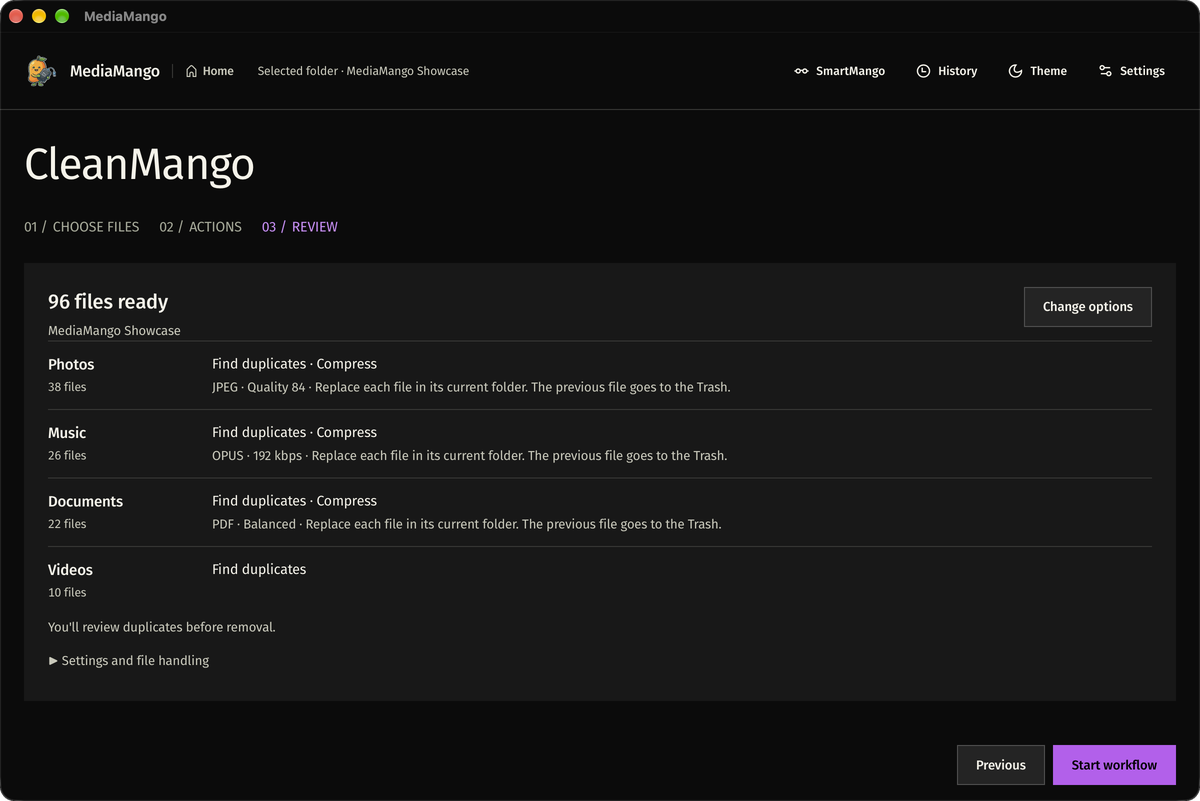
From the Home screen, open File Manager / Mango Clean to clean and organise any local folder or imported phone gallery in one pass:
-
01
Import Folders · Pick one or more folders on your computer or external drive.
-
02
Choose Actions · Select duplicate detection, visually similar photo matching, clutter filtering (screenshots, WhatsApp forwards, memes), photo/video compression, or folder organisation.
-
03
Review & Apply · Compare duplicate photos side by side, preview the new folder structure, and confirm before any files are changed. Reversible moves and renames appear in the History drawer; permanent deletion cannot be undone.
Tools Overview
Alongside Mango Clean, the Mango Tools launcher gives you direct access to standalone utilities:
| Tool | Availability | What It Does |
|---|---|---|
| File Manager (Mango Clean) | Available | Guided workflow for duplicate cleanup, clutter removal, media compression, and folder organisation. |
| System Cleaner | Available | Scans application caches, system logs, temporary files, Trash bins, and large downloads. |
| Storage Analyser | Available | Visual disk usage map showing which folders and files take up the most space. |
| Superuser | Available | Searchable directory of all advanced media, file, and system utilities in one view. |
| iPhone Photo Exporter | Available | Direct USB photo and video export from an iPhone to local folders on macOS and Windows. |
| Lossless Music Checker | Available | Analyses audio frequency spectrums to verify whether lossless tracks are genuine or upscaled transcodes. |
| Format Converter | Available | Batch converts photos, audio tracks, and videos between common formats locally. |
| Camera / SD Import | Available | Copies and organises photos and footage from SD cards and cameras. |
| Autosort | Coming soon | Rule-based folder sorting by file type, capture date, and resolution. |
| Auto Rename (Rename Files) | Coming soon | Batch file renaming using date, sequence, and metadata patterns. |
| Live Folders | Coming soon | Automatic background sorting for watched folders on your drive. |
System Permissions & Setup
macOS: Full Disk Access
MediaMango never asks for permissions on startup. When you run System Cleaner to scan protected system caches or the Trash folder, macOS requires Full Disk Access:
-
01
Open System Settings → Privacy & Security → Full Disk Access.
-
02
Turn on the switch next to MediaMango and run the scan again.
Windows: iPhone USB Setup
To export photos and videos from an iPhone over USB on Windows 10 or 11, install Apple's official USB driver package:
- 01
-
02
Connect your iPhone with a USB cable, unlock the phone, and tap Trust This Computer.
-
03
Open Mango Tools → iPhone Photo Exporter inside MediaMango.
Licensing & Checkout
Every new installation includes a 48-hour full-access trial. After the trial, you can choose between two passes:
- 1-Year Pass ₹499 INR / $18.49 USD per year
- Unlimited Lifetime ₹749 INR / $24.49 USD one-time payment
How to Activate Your Pass
-
01
Start from MediaMango · Click Upgrade in the top-right corner of the desktop app (or in Settings → Licensing).
-
02
Pay in your browser · Select 1-Year Pass or Unlimited Lifetime in the checkout tab that opens and complete payment via Razorpay.
-
03
Click "I've paid" in MediaMango · Return to the desktop app and click "I've paid" to activate your license immediately.
Troubleshooting
Checkout says "Open checkout from MediaMango" or "This checkout link has expired"
Checkout links are created by the desktop app so your purchase is tied to your computer. Go back to MediaMango and click Upgrade again to open a fresh checkout session.
Payment completed, but the app has not updated yet
Open the Licensing dialog inside MediaMango and click "I've paid". The app will verify your purchase and unlock your pass right away.
Still need help?
Visit the Support page to send a bug report or reach out directly.